Contents
- Index
- Previous
- Next
Browse Calls
Browse the Calls File
This screen is used to view calls for support many records at a time in rows and columns like a spreadsheet.
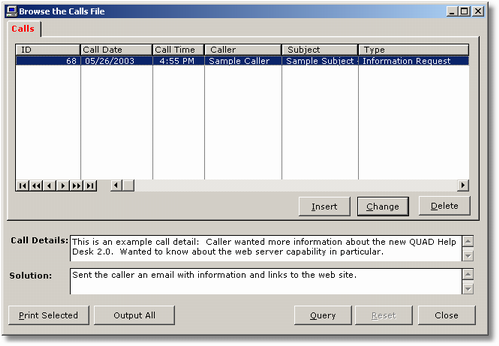
Under the list of calls, you will see the Call Details and Solution field. These were added in version 2.0 so you can more easily page through calls in the browse screen without having to open each call record. This version also adds an Output to Rich Text Format button which will create a tabular style document in Rich Text Formal which can be opened with Microsoft Word, Wordpad, or most other windows based word processing programs. Although you will have the option to save the document in either Portrait or Landscape mode, it will still not be possible to include all fields from the browse screen in the document. The program will attempt to fit as many column as possible in the document from left to right. (The details and solution will always be included as the 2nd and 3rd columns). You may want to drag columns around from left to right and even use the Right Click menu option to hide columns in order to get the best possible combination of field for your tabular RTF document.
As in the earlier version, a Print button is provide to let you quickly print a one page detailed report of the selected call. Also, a Query button is provided to call the Query Wizard for this screen, and if an query in in effect, a Reset button is available to let you remove the Query Condition.
Also new in this version is a right click "filter" option to let you quickly drill down based on the data in the selected column. Don't forget after you have created a filter using this right click option you will need to "void" the filter you created to remove the filter condition and see all records again.
BrowseCalls also calls the following procedures:
CallDetails
UpdateCalls