Contents
- Index
- Previous
Web Interface
In order to allow users or customer to submit support requests via browser, a QUick And Dirty (QUAD) Http Web Server is included (actually two of them). Along with the main windows application and the associated .dll files, two additional shortcuts are created to the HTTP server executable files. One uses the default Port of 80 and this can be used in most cases, unless you are actively using some other web server such as Microsoft IIS on the PC you will use to serve the web pages (actually, there are only two physical file or pages - the other URLs are to resources created dynamically and no physical file exists).
If you have some thing running on Port 80 on that PC you can use the other HTTP server which uses Port 89. The main difference is this: if you use the HTTP Server on port 80 you can use URLs like this:
http://111.222.3333/techupdate
or
http://111.222.333/callers
or
http://111.222.333/request.htm
If you can't use Port 80 and have to run the other http server your URLs would need to have :89 added after the IP address of the computer that is serving as your HTTP server. So these URLs would now be entered in the browser like:
http://111.222.333:89/techupdate
or
http://111.222.333:89/callers
or
http://111.222.333:89/request.htm
NOTE: The 111.222.333 is a sample IP address. Use the IP address of the PC you have installed the program on for testing.
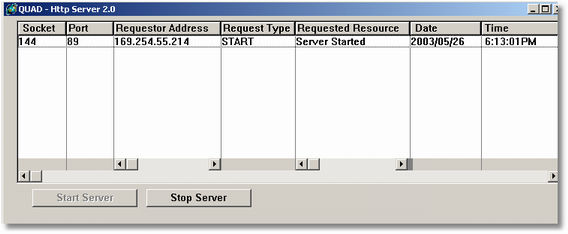
When you first start the HTTP server you will see a screen like the one below. The IP address will be different, so notice that IP address. It is the one being use on your HTTP Server PC.
The next screen shows a sample of how the web update of a caller might look.
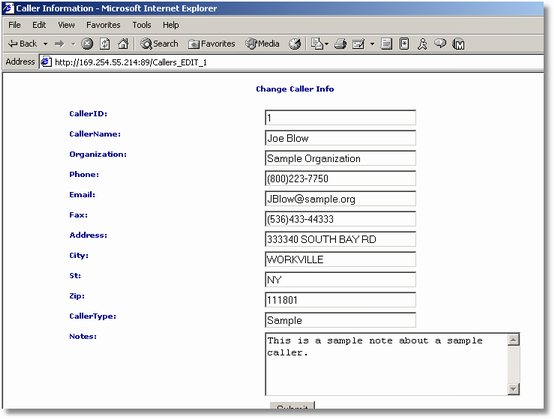
The URLs you or your support personnel will use are http://youripaddress/calls to view or edit information about your customer or internal users, and http://youripaddress/techupdate to view and edit the calls or requests. NOTE: Technicians do not have to use the web pages to udpate the database. This program is sold with a site license so as many technicians as needed can all install the windows application at your site, accepting the default and then change the START IN property for the shortcut to a "shared" folder on the server where you want the data to be saved. The techniciand do not need to run the HTTP server on their workstations, it need only be run on the PC that will act as the server.
Two physical pages are provided with the installation and must be installed to C:\QUAD2 on the PC that will be acting as the HTTP Server. The first is the Request.htm file and it is used by your customers or users to submit a request for support. The other page is a simple thank you page to let the person know their request has been entered in the database.